
Amazon SES
Account dashboard
This is the AWS Amazon Simple Email Service (SES) console
Here we can find;
1. Sending Limits
- Daily sending quota: 80,000 emails per 24-hour period
- Maximum send rate: 14 emails per second
- Option to request a limit increase is available
2. Account Health
- Always check Region: Asia Pacific (Mumbai) and
- Status: should be Healthy
3. Daily Email Usage
Daily email usage helps you to monitor your daily sending statistics to ensure you aren’t approaching your sending limits.
Metrics:
- Emails sent
- Remaining sends
- Sending quota used


4. Sending Statistics
- Charts available showing successful send requests, rejection rates, bounce rates, and complaint rates for the Mumbai region.
- Can use the Date range dropdown and select date values from Last 1 day to Last 14 days to filter the charts
- Each chart contains a View in CloudWatch button that will open the respective metric in the CloudWatch console allowing detailed data to be viewed, customized metric math, and the creation of alarms
Reputation metrics
The Reputation metrics page gives you a look into two key metrics that Amazon SES takes into account when evaluating your sender reputation and the health of your account.
Sender Reputation
- It's how email providers (Gmail, Yahoo, etc.) judge whether your emails are trustworthy
- A bad reputation = your emails land in spam or get blocked entirely
- A good reputation = emails reach the inbox
Why It Matters Practically
- AWS can pause or suspend your SES account if bounce/complaint rates go too high
- Keeping these rates low protects your ability to keep sending emails
- It directly impacts whether your business emails, OTPs, or notifications actually reach users
1. Summary
Account Status - It shows whether your account is in good standing based on how many emails bounce or get marked as spam.
There are 3 possible statuses:
- Healthy: Everything looks good, keep sending normally.
- Under Review: Something triggered a warning; your account is being monitored.
- At Risk: Your account has serious issues and may lose the ability to send emails.
Emails Sent (Last 24 Hours): How many emails you've sent today.
Remaining Sends: How many more emails you can still send today.
Sending Quota Used: The percentage of your daily email limit you've already used (e.g., 60% means you've used more than half your daily allowance).
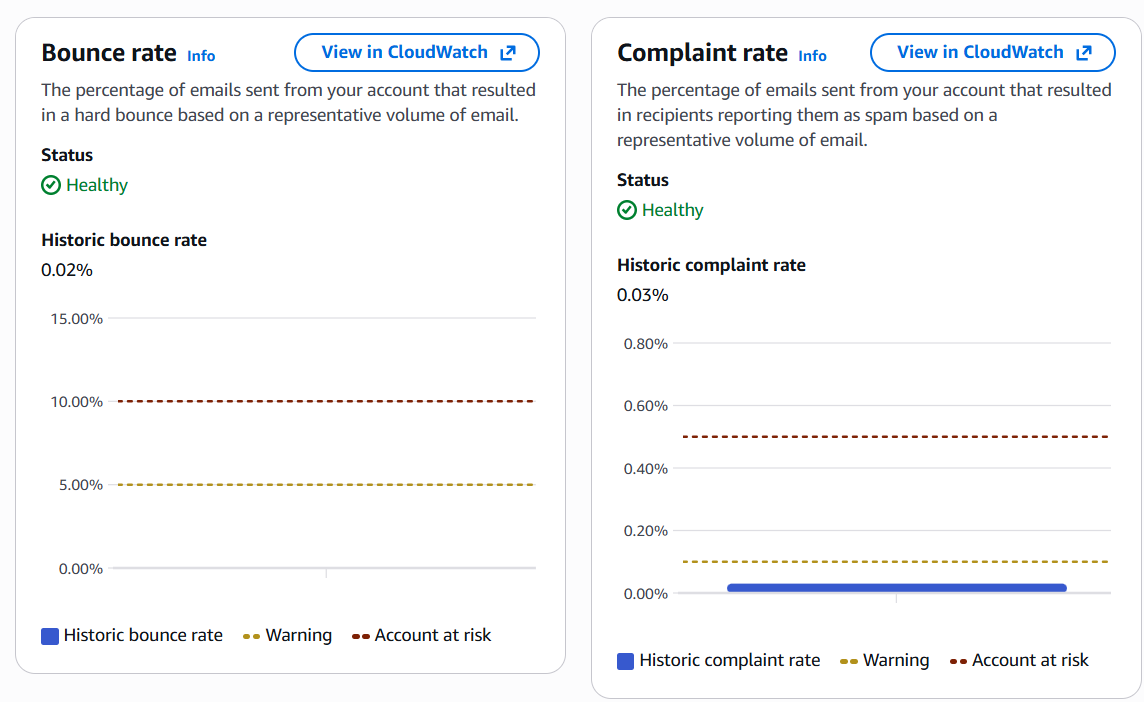
2. Bounce rate
- Emails that couldn't be delivered (invalid addresses, full inboxes). High bounce = danger signal
- Historic bounce rate - This rate is calculated using a representative volume of mail, which is displayed in the *Summary* section under Messages sent. This rate shows how healthy your account is for sending messages at a general level and shouldn't be mixed up with your usual bounce rate, which relates to specific bounce events happening in real-time.
3. Complaint rate
How many recipients marked your email as spam. Even a small % can hurt badly
Things to check on weekly basis:
- Identify problematic email lists (lots of invalid addresses = high bounce)
- Spot if users are unhappy with your emails (high complaints)
- Know when to clean your mailing list
- Decide when to request a limit increase
This page is essentially the health report of your email program, ignoring it risks getting your account suspended and losing the ability to send emails entirely.
Identities
- An identity is a domain, subdomain, or email address that you use to send emails via SES
- All identities must be verified before you can send emails from them
- Verification proves to AWS that you own or control that domain/email
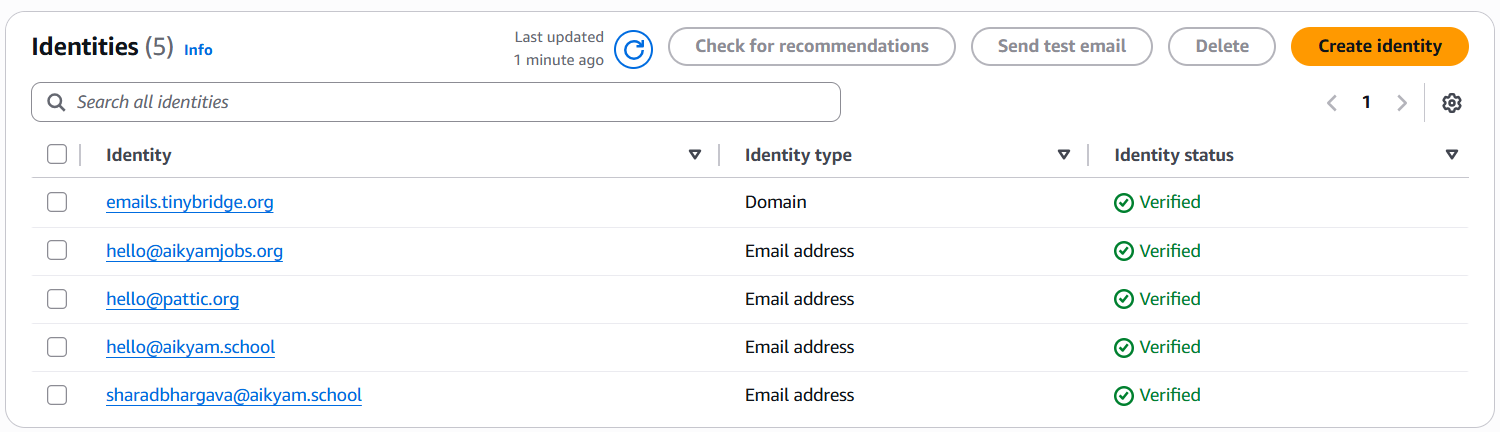
From here we can understand;
- Which domains/emails are authorized to send on your behalf
- Whether any identity is unverified (you can't send from unverified ones)
- How many sending sources your SES account is managing
Identities Matter Because;
- Only verified identities can send emails. This prevents spam/spoofing
- A domain identity (like
emails.tinybridge.org) is more powerful than a single email address. It covers all emails under that domain - Proper setup of identities directly impacts whether your emails pass spam filters
Suppression List
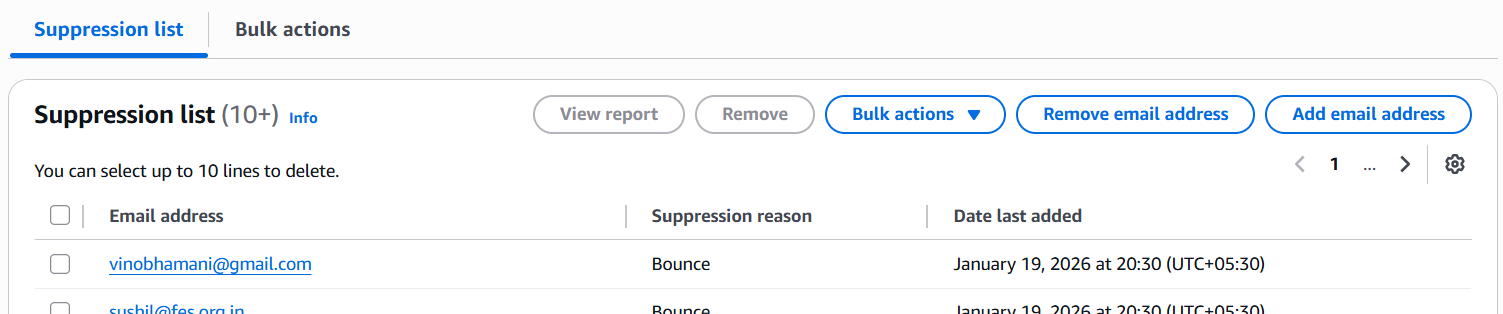
- A list of email addresses that SES automatically skips when sending emails
- Prevents you from repeatedly emailing addresses that previously bounced or complained
- Can be configured at the account level or configuration set level
Those emails we are block listed in Listmonk will reflect here
Actions Available;
Suppression list tab - View/manage individual suppressed addresses
- Bulk Action - Add or remove email address in bulk
- Remove email address - Manually remove one or more recipient email addresses from your account’s suppression list.
- Add email address - Manually add one or more recipient email addresses to your account’s suppression list
Bulk actions tab - Add or remove addresses in bulk
Account-level settings
- Suppression list: Enabled
- Suppression reasons: Bounces and Complaints
This means SES will automatically suppress (block sending to) any email address that has previously bounced or been marked as spam/complaint.
Important;
- Protects your sender reputation - not sending to bad addresses keeps bounce rates low
- Prevents AWS from suspending your account - high bounces/complaints = account at risk
- Saves sending quota - no wasted emails to addresses that will never receive them
- If a valid email was wrongly suppressed, you can manually remove it from the list here
Virtual Deliverability Manager (VDM) Dashboard
- A powerful dashboard that shows the overall performance of your email sending
The dashboard provides both a broad and detailed perspective on your account’s deliverability program - featuring easy-to-understand graphic cards that display deliverability and reputation through bounce/complaint statistics, as well as open/click and delivery rates. You can also dive into specific table data when there’s a problem related to a certain ISP, sending identity, or configuration set linked to an email campaign.
Date range: you can select either Relative range (default) or Absolute range for the timeframe to be used in analyzing your deliverability stats and metrics:
Key Metrics:
- Total Send Volume - how many emails went out according to the selected date range, good baseline to track growth or drops
- Open Rate - the number of emails opened
- Click Rate - of those who opened, some clicked links inside
Metrics
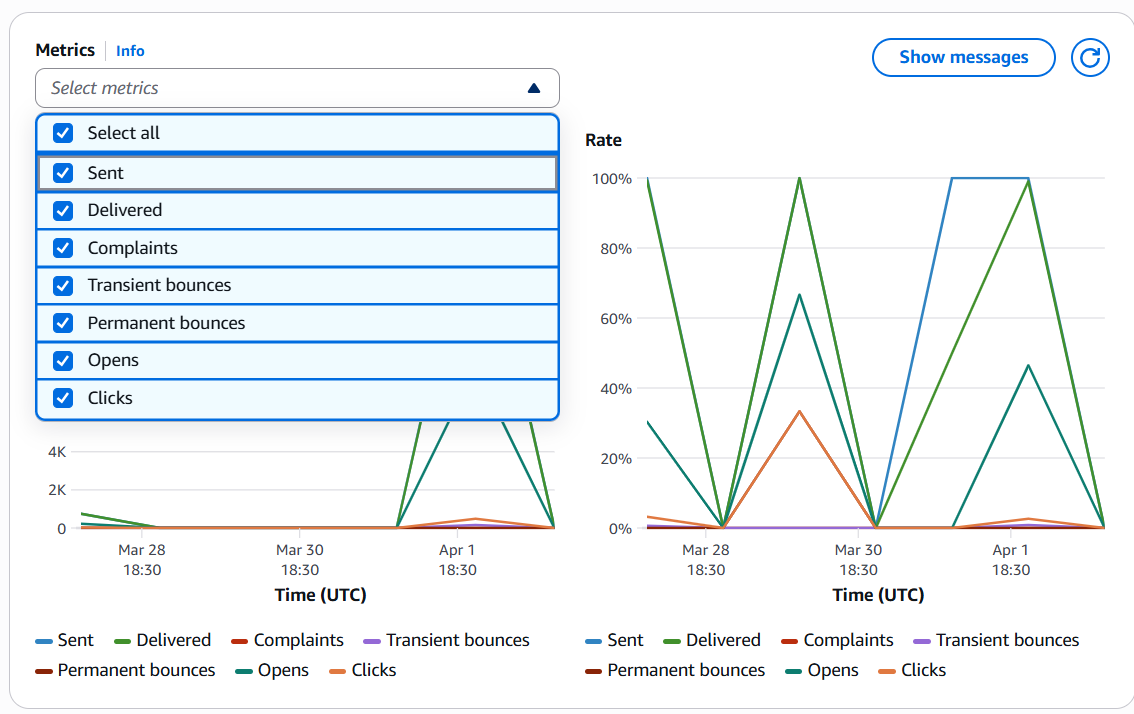
The Metrics pane shows all VDM metrics in the form of time series graphs, with Volume progression displayed on the left side and Rate progression on the right side. It has a set aggregation period of 1 day, which illustrates the progression for the date range you choose at the top of the page. You can filter the metrics you wish to view on the chart by using the Select metrics dropdown.
The individual metrics:
- Sent - Your baseline; everything else is measured against this.
- Delivered - Emails accepted by the recipient's server. High delivered rate = good.
- Complaints - Recipients who marked your email as spam. Keep this very low (ideally under 0.1%) or your sender reputation suffers.
- Transient bounces - Temporary delivery failures (e.g., recipient's mailbox is full, server temporarily down). These may succeed if retried.
- Permanent bounces - Undeliverable emails due to invalid/non-existent addresses. These will never succeed and should be removed from your list immediately, as high bounce rates damage your sender reputation.
- Opens - Recipients who opened your email (tracked via a tiny invisible pixel).
- Clicks - Recipients who clicked a link inside your email.
After each newsletter, review the metrics to see how it is engaging with our audience.
No comments to display
No comments to display