Newsletter
Newsletter Checklist
Content
- Subject line is clear, compelling, and relevant to job seekers
- Preview/preheader text is filled in and complements the subject line
- All job listings are accurate (title, company, location, salary if applicable)
- Job links/URLs are working and point to the correct listings
- No expired or already-filled job postings included
Design & Formatting
- Email renders correctly on mobile and desktop
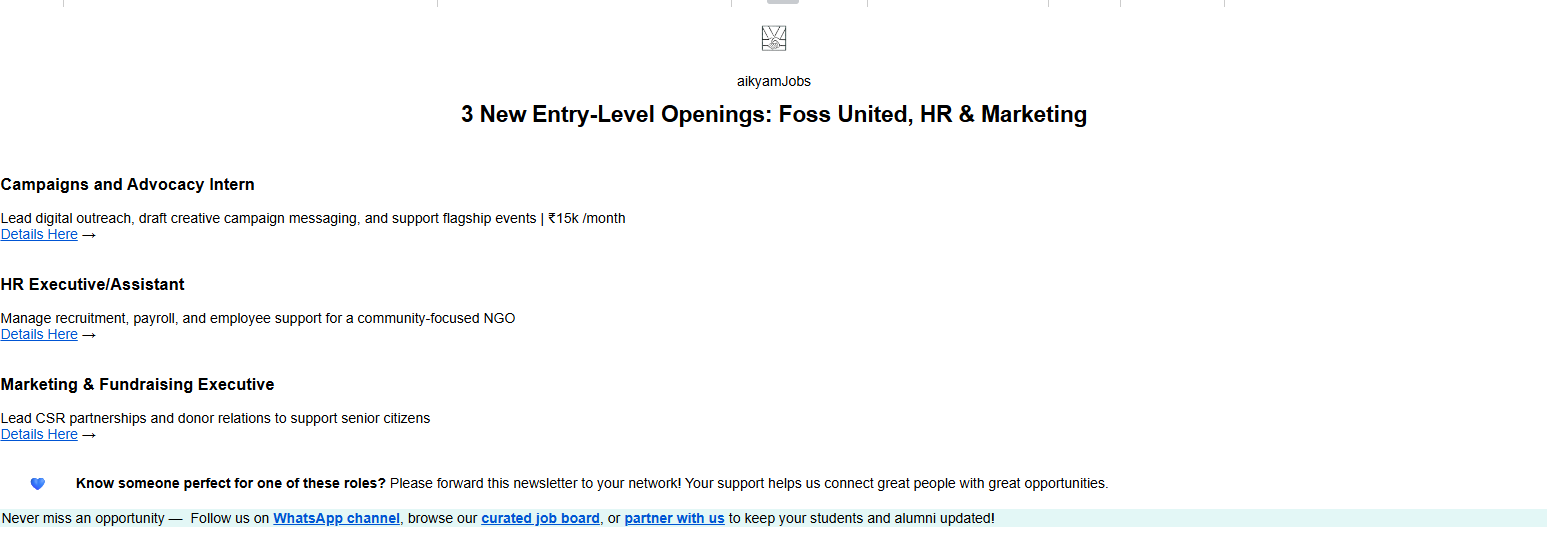
- aikyam jobs logo should be at top centre
- Fonts and branding are consistent with aikyam jobs identity
- CTA buttons (e.g. "Details Here") are visible and working
- Snippets should be placed at the bottom
- All the text except title of the newsletter should be in left alignment
Listmonk Settings
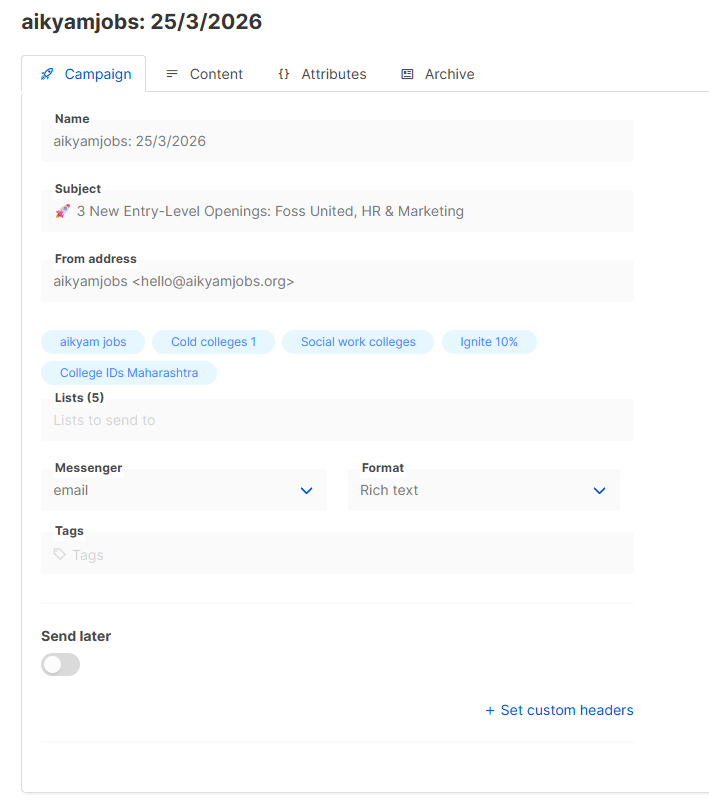
- Correct mailing list(s) selected
- From name is set to "aikyam Jobs" (or appropriate sender name)
- Reply-to email address is correct
- Campaign name is properly labelled (e.g. "aikyamjobs – 25/03/2026" "aikyamjobs March 25, 2026 )
- If needed Sending schedule/time is set appropriately
Testing
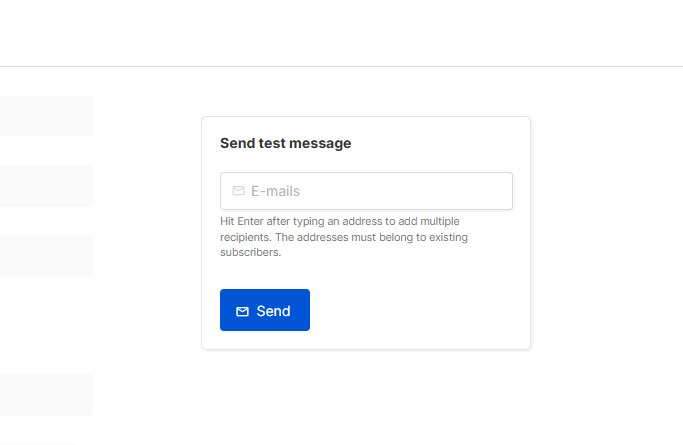
- Test email sent and reviewed before campaign launch
- Monitor overall look of the newsletter
- All links checked in the test email (including apply button in the post)
- Checked for typos and grammatical errors
Monitor Post-Send
- Campaign launched successfully in Listmonk
- Monitor open rates and click rates after sending ( after 48hrs)
- Check for bounce reports and clean the list if needed
- Note any issues for the next newsletter cycle
Amazon SES
Account dashboard
This is the AWS Amazon Simple Email Service (SES) console
Here we can find;
1. Sending Limits
- Daily sending quota: 80,000 emails per 24-hour period
- Maximum send rate: 14 emails per second
- Option to request a limit increase is available
2. Account Health
- Always check Region: Asia Pacific (Mumbai) and
- Status: should be Healthy
3. Daily Email Usage
Daily email usage helps you to monitor your daily sending statistics to ensure you aren’t approaching your sending limits.
Metrics:
- Emails sent
- Remaining sends
- Sending quota used


4. Sending Statistics
- Charts available showing successful send requests, rejection rates, bounce rates, and complaint rates for the Mumbai region.
- Can use the Date range dropdown and select date values from Last 1 day to Last 14 days to filter the charts
- Each chart contains a View in CloudWatch button that will open the respective metric in the CloudWatch console allowing detailed data to be viewed, customized metric math, and the creation of alarms
Reputation metrics
The Reputation metrics page gives you a look into two key metrics that Amazon SES takes into account when evaluating your sender reputation and the health of your account.
Sender Reputation
- It's how email providers (Gmail, Yahoo, etc.) judge whether your emails are trustworthy
- A bad reputation = your emails land in spam or get blocked entirely
- A good reputation = emails reach the inbox
Why It Matters Practically
- AWS can pause or suspend your SES account if bounce/complaint rates go too high
- Keeping these rates low protects your ability to keep sending emails
- It directly impacts whether your business emails, OTPs, or notifications actually reach users
1. Summary
Account Status - It shows whether your account is in good standing based on how many emails bounce or get marked as spam.
There are 3 possible statuses:
- Healthy: Everything looks good, keep sending normally.
- Under Review: Something triggered a warning; your account is being monitored.
- At Risk: Your account has serious issues and may lose the ability to send emails.
Emails Sent (Last 24 Hours): How many emails you've sent today.
Remaining Sends: How many more emails you can still send today.
Sending Quota Used: The percentage of your daily email limit you've already used (e.g., 60% means you've used more than half your daily allowance).
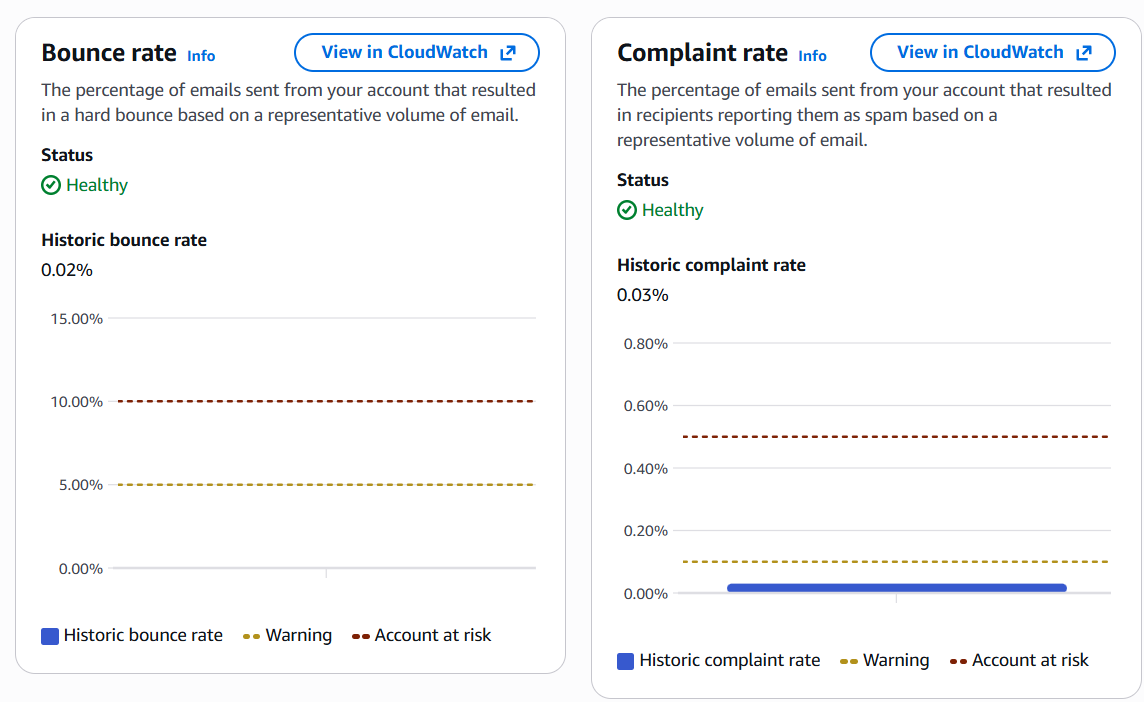
2. Bounce rate
- Emails that couldn't be delivered (invalid addresses, full inboxes). High bounce = danger signal
- Historic bounce rate - This rate is calculated using a representative volume of mail, which is displayed in the *Summary* section under Messages sent. This rate shows how healthy your account is for sending messages at a general level and shouldn't be mixed up with your usual bounce rate, which relates to specific bounce events happening in real-time.
3. Complaint rate
How many recipients marked your email as spam. Even a small % can hurt badly
Things to check on weekly basis:
- Identify problematic email lists (lots of invalid addresses = high bounce)
- Spot if users are unhappy with your emails (high complaints)
- Know when to clean your mailing list
- Decide when to request a limit increase
This page is essentially the health report of your email program, ignoring it risks getting your account suspended and losing the ability to send emails entirely.
Identities
- An identity is a domain, subdomain, or email address that you use to send emails via SES
- All identities must be verified before you can send emails from them
- Verification proves to AWS that you own or control that domain/email

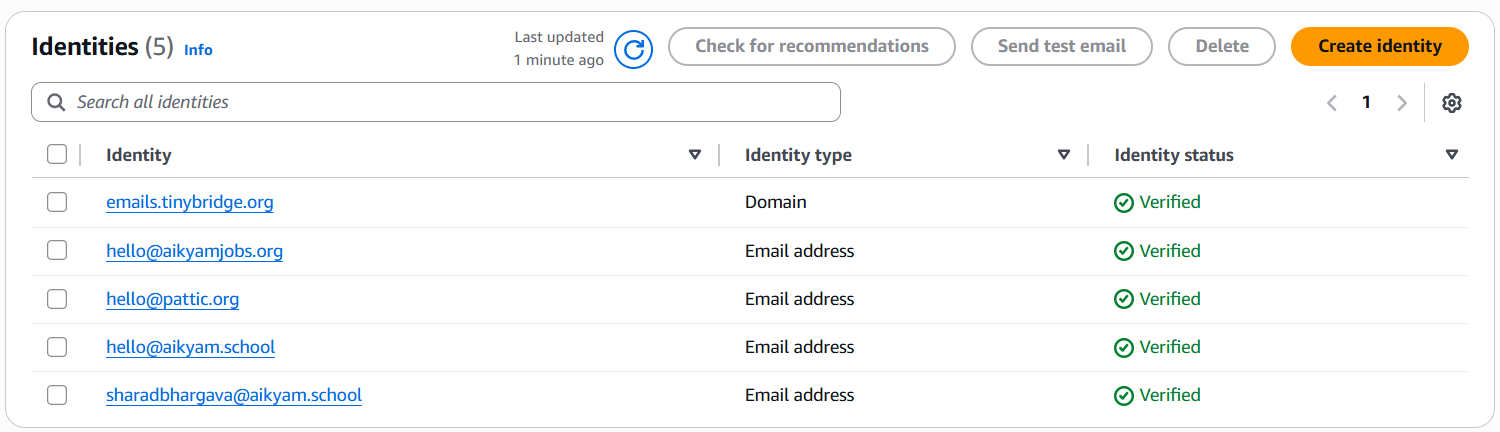
From here we can understand;
- Which domains/emails are authorized to send on your behalf
- Whether any identity is unverified (you can't send from unverified ones)
- How many sending sources your SES account is managing
Identities Matter Because;
- Only verified identities can send emails. This prevents spam/spoofing
- A domain identity (like
emails.tinybridge.org) is more powerful than a single email address. It covers all emails under that domain - Proper setup of identities directly impacts whether your emails pass spam filters
Suppression List
- A list of email addresses that SES automatically skips when sending emails
- Prevents you from repeatedly emailing addresses that previously bounced or complained
- Can be configured at the account level or configuration set level
Those emails we are block listed in Listmonk will reflect here
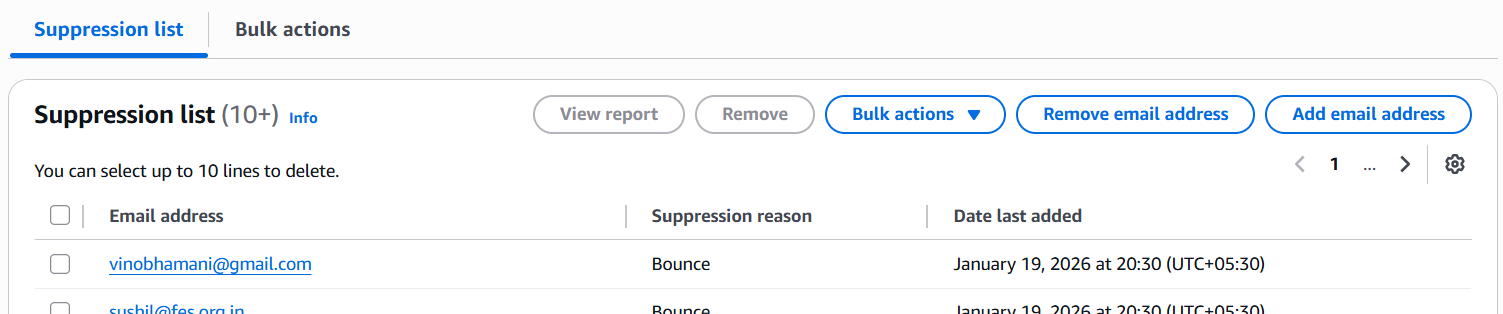
Actions Available;
Suppression list tab - View/manage individual suppressed addresses
- Bulk Action - Add or remove email address in bulk
- Remove email address - Manually remove one or more recipient email addresses from your account’s suppression list.
- Add email address - Manually add one or more recipient email addresses to your account’s suppression list
Bulk actions tab - Add or remove addresses in bulk
Account-level settings
- Suppression list: Enabled
- Suppression reasons: Bounces and Complaints
This means SES will automatically suppress (block sending to) any email address that has previously bounced or been marked as spam/complaint.
Important;
- Protects your sender reputation - not sending to bad addresses keeps bounce rates low
- Prevents AWS from suspending your account - high bounces/complaints = account at risk
- Saves sending quota - no wasted emails to addresses that will never receive them
- If a valid email was wrongly suppressed, you can manually remove it from the list here
Virtual Deliverability Manager (VDM) Dashboard
- A powerful dashboard that shows the overall performance of your email sending
The dashboard provides both a broad and detailed perspective on your account’s deliverability program - featuring easy-to-understand graphic cards that display deliverability and reputation through bounce/complaint statistics, as well as open/click and delivery rates. You can also dive into specific table data when there’s a problem related to a certain ISP, sending identity, or configuration set linked to an email campaign.
Date range: you can select either Relative range (default) or Absolute range for the timeframe to be used in analyzing your deliverability stats and metrics:
Key Metrics:
- Total Send Volume - how many emails went out according to the selected date range, good baseline to track growth or drops
- Open Rate - the number of emails opened
- Click Rate - of those who opened, some clicked links inside
Metrics
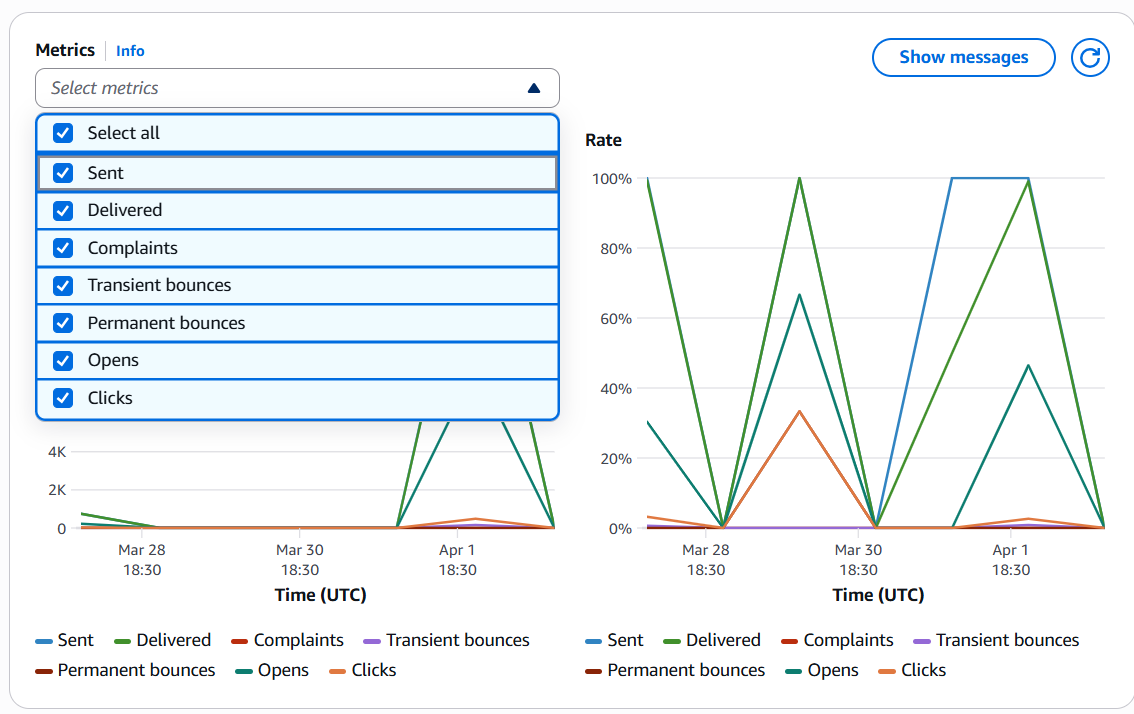
The Metrics pane shows all VDM metrics in the form of time series graphs, with Volume progression displayed on the left side and Rate progression on the right side. It has a set aggregation period of 1 day, which illustrates the progression for the date range you choose at the top of the page. You can filter the metrics you wish to view on the chart by using the Select metrics dropdown.
The individual metrics:
- Sent - Your baseline; everything else is measured against this.
- Delivered - Emails accepted by the recipient's server. High delivered rate = good.
- Complaints - Recipients who marked your email as spam. Keep this very low (ideally under 0.1%) or your sender reputation suffers.
- Transient bounces - Temporary delivery failures (e.g., recipient's mailbox is full, server temporarily down). These may succeed if retried.
- Permanent bounces - Undeliverable emails due to invalid/non-existent addresses. These will never succeed and should be removed from your list immediately, as high bounce rates damage your sender reputation.
- Opens - Recipients who opened your email (tracked via a tiny invisible pixel).
- Clicks - Recipients who clicked a link inside your email.
After each newsletter, review the metrics to see how it is engaging with our audience.
Listmonk FAQs
How do I get the unsubscribed / bounced / complained people from SES and add them to Listmonk's blocklist?
SES automatically maintains a Suppression List — it contains every email address that has hard-bounced or been marked as spam. You need to periodically sync this list into Listmonk's blocklist so that Listmonk also stops sending to these addresses.
Where to find the Suppression List in SES:
SES Console → Suppression List → Suppression list tab
- Open the Amazon SES Console and make sure you're in the correct region (Asia Pacific — Mumbai).
- Go to Suppression List in the left sidebar. You'll see all email addresses that SES has suppressed, along with the reason (Bounce or Complaint) and the date added.
- Export or note down the suppressed email addresses. You can filter by reason if you only want bounces or only complaints.
- In Listmonk, go to Subscribers → All Subscribers. Search for each suppressed email, select it, and mark it as Blocklisted. For bulk actions, you can use Listmonk's import feature with the blocklist flag set to
true. - After blocklisting in Listmonk, optionally remove the address from SES's suppression list only if you've confirmed the address is now in Listmonk's blocklist — this avoids double-handling next time.
How do I identify the truly active subscribers of my newsletter?
For us, an "active subscriber" is someone who has received at least 9–10 newsletters/campaigns and has opened at least one of them (i.e., open rate > 0%). This filters out both new subscribers who haven't had enough exposure and long-time subscribers who never engage.
Conversely, to find inactive subscribers — people who received enough campaigns but never opened a single one — use the query below in Listmonk's subscriber search:
Listmonk → Subscribers → Query Subscribers → Advanced
Listmonk SQL — Inactive Subscribers
-- Subscribers who received ≥ 9 campaigns but opened ZERO
EXISTS(
  SELECT 1
    FROM campaign_lists cl
    INNER JOIN subscriber_lists sl
      ON cl.list_id = sl.list_id
    WHERE sl.subscriber_id = subscribers.id
    GROUP BY sl.subscriber_id
    HAVING COUNT(DISTINCT cl.campaign_id) >= 9
)
AND NOT EXISTS(
  SELECT 1
    FROM campaign_views cv
    WHERE cv.subscriber_id = subscribers.id
)
What this query does:
- The first
EXISTSblock finds subscribers who belong to lists that have been targeted by at least 9 distinct campaigns — meaning they've had enough exposure to your content. - The
AND NOT EXISTSblock filters to only those who have zero entries in thecampaign_viewstable — meaning they never opened a single email. - The result is your inactive segment: people who've had plenty of chances to engage but haven't. You can then decide whether to re-engage them with a special campaign or blocklist them.
What are safe bounce and complaint rate thresholds, and where do I check them?
Your bounce and complaint rates directly determine your SES account health. If they go too high, AWS will put your account under review or suspend it entirely.
Where to check:
SES Console → Reputation metrics → Summary
| Metric | Safe | Warning | Dangerous |
|---|---|---|---|
| Bounce rate | Below 2% | 2% – 5% | Above 5% |
| Complaint rate | Below 0.08% | 0.08% – 0.1% | Above 0.1% |
| Account status | Healthy | Under Review | At Risk |
How do I check how many emails I've sent today and how many I have left?
The SES account dashboard shows your daily sending usage at a glance.
SES Console → Account dashboard → Daily email usage
You'll see three numbers:
- Emails sent — how many you've sent in the current 24-hour window.
- Remaining sends — how many more you can send before hitting the daily quota.
- Sending quota used — percentage of daily limit consumed.
Our current limits: 80,000 emails per 24 hours with a maximum send rate of 14 emails per second. If you're approaching the limit before a large campaign, request a limit increase through the SES console.
What should I review in SES after every campaign send?
After each newsletter or campaign, do a quick post-send review using these SES sections:
- Sending Statistics — Check the charts for the last 1 day. Look at successful sends, rejections, bounces, and complaints. If bounces or complaints spike, investigate immediately.
- Reputation Metrics — Confirm account status is still Healthy. Check that bounce rate and complaint rate haven't crossed into warning thresholds.
- Suppression List — Check for newly added addresses. Sync any new entries into Listmonk's blocklist (see FAQ 01).
- VDM Dashboard — Review open rate and click rate for the campaign period. Compare against your baseline to see if engagement is trending up or down.
How do I find out which emails permanently bounced so I can clean my list?
There are two types of bounces in SES:
- Permanent bounces — Invalid or non-existent email addresses. These will never succeed and should be removed from your list immediately. They show up in the SES Suppression List with reason "Bounce".
- Transient bounces — Temporary failures (full mailbox, server down). These may succeed on retry and don't necessarily need removal.
To clean your list:
- Go to the SES Suppression List and filter by reason = Bounce.
- Export or note the permanently bounced addresses.
- In Listmonk, blocklist these subscribers to prevent future sends.
You can also check the VDM dashboard's Metrics pane — look at the Permanent bounces line in the time-series graph for date ranges around your campaign sends.
How do I check if my sending domain/identity is still verified and healthy?
You can only send emails from verified identities. If verification lapses or DNS records change, your sends will fail.
SES Console → Identities
- Open the Identities page and confirm that your domain (e.g.,
emails.tinybridge.org) shows a Verified status. - If any identity shows Unverified, you cannot send from it. Re-verify by updating DNS records as prompted by SES.
- A domain-level identity covers all email addresses under that domain — it's more robust than verifying individual email addresses.
What does the Virtual Deliverability Manager (VDM) dashboard tell me and when should I use it?
The VDM dashboard is your high-level view of how well your emails are actually performing — not just whether they were sent, but whether they were delivered, opened, and clicked.
SES Console → Virtual Deliverability Manager → Dashboard
Key metrics to focus on:
- Total Send Volume — Your baseline. Track weekly to spot unexpected drops or spikes.
- Delivered rate — Emails accepted by the recipient's mail server. Should be consistently high. A drop here means delivery issues.
- Open Rate — Percentage of delivered emails that were opened (tracked via a tiny invisible pixel). This tells you if your subject lines and content are working.
- Click Rate — Of those who opened, how many clicked a link. This is your engagement quality metric.
- Complaints vs. Transient vs. Permanent bounces — Time-series graphs let you spot trends. Use the "Select metrics" dropdown to toggle these on/off.
Use the Date range selector (Relative or Absolute) to compare different campaign periods. The Metrics pane shows daily-aggregated time-series graphs with volume on the left axis and rates on the right.